🤖 GetCito - World's First Open Source AI Optimization (AIO) / Generative Engine Optimization (GEO) Tool




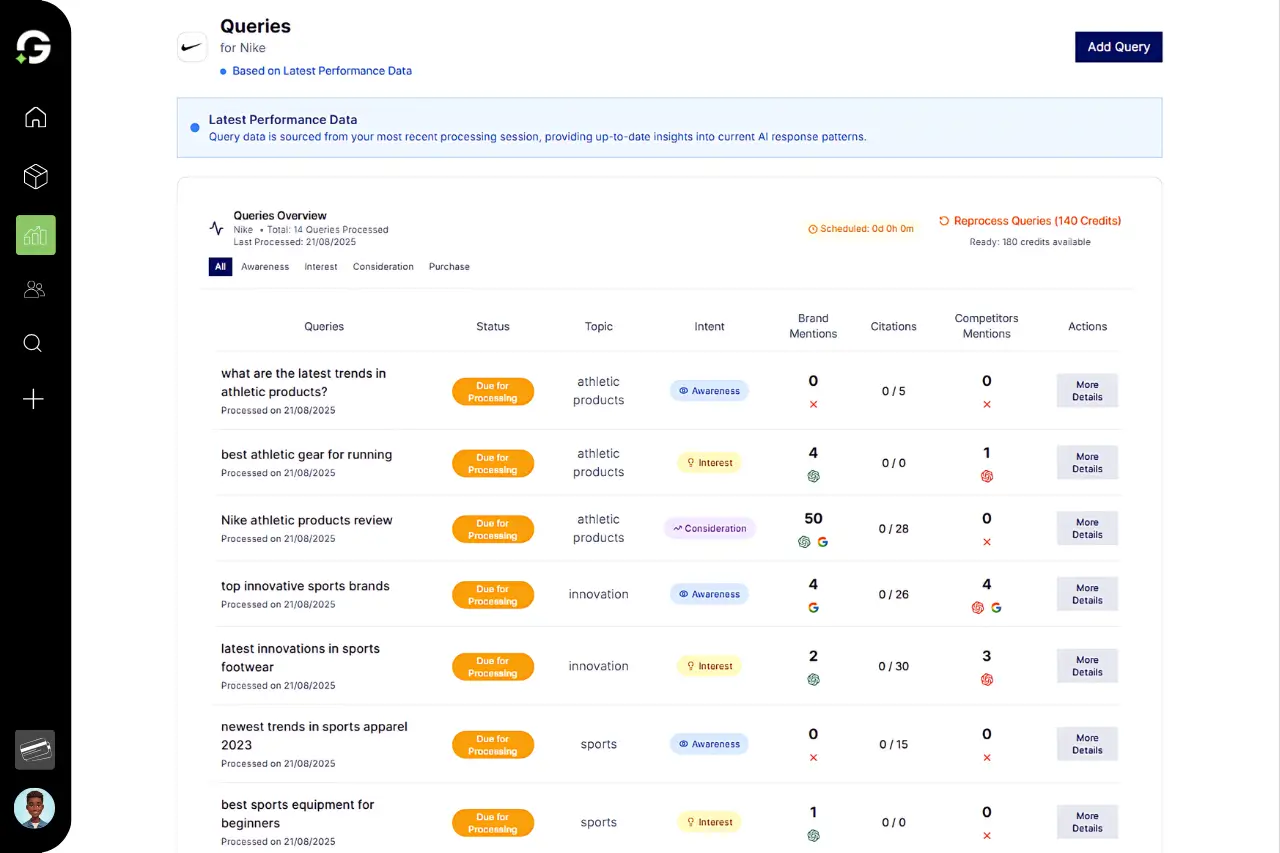
A comprehensive AI-powered monitoring and optimization tool for AI Optimization (AIO), Answer Engine Optimization (AEO), and Generative Engine Optimization (GEO). Monitor your digital presence across AI-powered search engines and optimize your content for maximum visibility.
- ✨ Features
- 🚀 Quick Start
- 📋 Prerequisites
- ⚙️ Installation
- 🔧 Configuration
- 🔐 Authentication Setup
- 🤖 AI Provider Configuration
- 📁 Project Structure
- 🚀 Deployment
- 🧪 Testing
- 🛠️ Troubleshooting
- 🤝 Contributing
- 📄 License
- Multi-Engine Optimization: Optimize content for ChatGPT, Perplexity, Gemini, and other AI search engines
- Real-time Monitoring: Track your content's performance across AI-powered platforms
- Advanced Analytics: Get detailed insights into AI visibility and ranking factors
- Content Optimization: AI-powered suggestions for improving content discoverability
- Next.js 13+: Server-side rendering with App Router and React Server Components
- Multi-Provider AI: Azure OpenAI (primary) with Google Gemini fallback system
- Firebase Integration: Authentication, Firestore database, and cloud functions
- Responsive Design: Mobile-first UI built with Tailwind CSS
- Real-time Updates: Live data synchronization and notifications
- Enterprise Security: Role-based access control and data encryption
- Automatic Code Splitting: Optimized bundle sizes for faster loading
- Edge Deployment: Deploy globally with Vercel Edge Functions
- Caching Strategy: Intelligent caching for API responses and static assets
- Progressive Web App: Offline functionality and mobile app experience
Get up and running in less than 5 minutes:
# Clone the repository
git clone https://github.com/ai-search-guru/getcito-worlds-first-open-source-aio-aeo-or-geo-tool.git
cd getcito-worlds-first-open-source-aio-aeo-or-geo-tool
# Install dependencies
npm install

# Copy environment template
cp .env.example .env.local

# Start development server
npm run dev


Open [http://localhost:3000](http://localhost:3000) with your browser to see the result.

You can start editing the page by modifying `app/page.tsx`. The page auto-updates as you edit the file.

This project uses [`next/font`](https://nextjs.org/docs/basic-features/font-optimization) to automatically optimize and load Inter, a custom Google Font.

## Learn More

To learn more about Next.js, take a look at the following resources:

- [Next.js Documentation](https://nextjs.org/docs) - learn about Next.js features and API.
- [Learn Next.js](https://nextjs.org/learn) - an interactive Next.js tutorial.

You can check out [the Next.js GitHub repository](https://github.com/vercel/next.js/) - your feedback and contributions are welcome!

## Deploy on Vercel

The easiest way to deploy your Next.js app is to use the [Vercel Platform](https://vercel.com/new?utm_medium=default-template&filter=next.js&utm_source=create-next-app&utm_campaign=create-next-app-readme) from the creators of Next.js.

Check out our [Next.js deployment documentation](https://nextjs.org/docs/deployment) for more details.

## Set Up Firebase

<https://console.firebase.google.com/>

- Log in with your Google account.
- Click on `Go to console` button.
- Click `Add Project` card.
- Give your project a name.
- Click on `Continue` button.
- Disable `Google Analytics for this project` (unless you wish to use it).
- Click `Create project` button.
- Click on the web icon button to create your web app. It will show a text popup `Web`.
- Register app by giving it a nickname and click `Register app` button.
- Where package.json is located, in your cli, type `npm i firebase`.
- Copy configuration file. Make a new file in `src` called `firebase` called `firebase.js`.
- In project root, create a file and name it `.env`.
- Make sure you add `.env.local` to your `.gitignore` so you don't expose your variables in git repo.
- Follow the instructions here at <https://nextjs.org/docs/pages/building-your-application/configuring/environment-variables#loading-environment-variables> to add your variables from firebase.js into this file.

Example...

# Azure OpenAI Configuration (Required)
AZURE_OPENAI_API_KEY=your_azure_openai_api_key_here
AZURE_OPENAI_ENDPOINT=https://your-resource-name.openai.azure.com
AZURE_OPENAI_DEPLOYMENT=gpt-4
AZURE_OPENAI_API_VERSION=2024-02-01

# Google Gemini Configuration (Optional)
# Get your API key from: https://ai.google.dev/
GOOGLE_AI_API_KEY=your_google_ai_api_key_here
# Alternative name for Gemini API key
# GEMINI_API_KEY=your_google_ai_api_key_here

# Firebase Configuration (Required for authentication and data storage)
NEXT_PUBLIC_FIREBASE_API_KEY=your_firebase_api_key
NEXT_PUBLIC_FIREBASE_AUTH_DOMAIN=your-project.firebaseapp.com
NEXT_PUBLIC_FIREBASE_PROJECT_ID=your-project-id
NEXT_PUBLIC_FIREBASE_STORAGE_BUCKET=your-project.appspot.com
NEXT_PUBLIC_FIREBASE_MESSAGING_SENDER_ID=123456789
NEXT_PUBLIC_FIREBASE_APP_ID=1:123456789:web:abcdef123456

# Other API Keys (Optional)
# Add other API keys as needed for additional providers
# Firebase Configuration
# Get these values from your Firebase project settings
# https://console.firebase.google.com/


# Optional: Firebase Measurement ID (for Google Analytics)
# NEXT_PUBLIC_FIREBASE_MEASUREMENT_ID=your_measurement_id

# Next.js Configuration
NEXTAUTH_URL=
NEXTAUTH_SECRET=

# Development Environment
NODE_ENV=development

# Optional: Custom App Settings
NEXT_PUBLIC_APP_NAME=GetCito Free & Open Source AIO, AEO or GEO Tool
NEXT_PUBLIC_APP_VERSION=10.0.0


SBOT_API_KEY=

SFLY_API_Key=


# Google Gemini Configuration (Optional)
# Get your API key from: https://ai.google.dev/
GOOGLE_AI_API_KEY=
# Alternative name for Gemini API key
GEMINI_API_KEY=


OPENAI_API_KEY=sk-xxxx-x


# DataForSEO Configuration (for Google AI Overview)
DATAFORSEO_USERNAME=
DATAFORSEO_PASSWORD=


PERPLEXITY_API_KEY=

FIREBASE_CLIENT_EMAIL=
FIREBASE_PRIVATE_KEY=

- Duplicate the `env.example` file and paste these variables with your own information.
- Click on `Continue on console` button
- On your project homepage, choose a product to add to your app. First, click on `Authentication`.
- Under `Get started with Firebase Auth by adding your first sign-in method` select `Email/Password`.

You should now be setup to use Firebase.

## Authentication

The application includes comprehensive authentication and route protection:

### Firebase Authentication Setup
- In `src/firebase/auth` directory contains the logic for `signin`, `signup`, `signOut`, and `googleSignIn`
- Uses Firebase Auth for user management with email/password and Google OAuth

### Route Protection
- **Dashboard routes**: All `/dashboard/*` routes are protected and require authentication
- **Client-side protection**: Uses `AuthContext` and `ProtectedRoute` component for client-side route guards
- **API protection**: Optional server-side protection using middleware and token verification
- **Admin routes**: Special protection for admin-only pages using email whitelist

### Authentication Components
- `AuthContext`: Provides authentication state across the application
- `ProtectedRoute`: Reusable component for protecting routes
- `AuthStatus`: Shows current authentication status with sign-out functionality

### Usage Examples

```tsx
// Protect a route
<ProtectedRoute>
  <YourComponent />
</ProtectedRoute>

// Protect admin routes
<ProtectedRoute
  requireAdmin={true}
  adminEmails={['admin@example.com']}
>
  <AdminPanel />
</ProtectedRoute>

// Check auth status
const { user, loading } = useAuthContext();- Automatic redirection to sign-in for unauthenticated users
- Loading states during authentication checks
- Admin role verification
- Firestore security rules (see
firestore.rules)
This application uses a multi-provider AI system with Azure OpenAI as the primary provider and Google Gemini as fallback. This ensures high availability and cost optimization.
- Create an Azure OpenAI resource in the Azure portal
- Deploy a GPT-4 model in your Azure OpenAI service
- Add the following environment variables to your
.envfile:
AZURE_OPENAI_API_KEY=your_azure_openai_api_key_here
AZURE_OPENAI_ENDPOINT=https://your-resource-name.openai.azure.com
AZURE_OPENAI_DEPLOYMENT=gpt-4
AZURE_OPENAI_API_VERSION=2024-02-01- Get a Google AI API key from the Google AI Studio
- Add the following environment variable to your
.envfile:
GOOGLE_AI_API_KEY=your_google_ai_api_key_here
# or alternatively
GEMINI_API_KEY=your_gemini_api_key_here- Primary: Azure OpenAI is attempted first for all AI requests
- Fallback: If Azure OpenAI fails or is unavailable, the system automatically falls back to Google Gemini
- Monitoring: All provider responses, costs, and response times are logged for monitoring
- Cost Tracking: The system tracks costs across providers to help optimize usage
You can test the AI provider configuration by running:
node test-company-info.jsThis will test the company information extraction API with sample domains and show which providers are being used.
The folder structure of this project is organized as follows:
pages: Contains the Next.js pages for server-side rendering.components: Holds the reusable React components.lib: Includes utility functions and modules.public: Stores static assets such as images, fonts, and stylesheets.styles: Contains global styles and Tailwind CSS configuration.firebase: Houses the Firebase configuration and Firebase-related functions.
Feel free to modify and expand the folder structure according to your project requirements.
To deploy your Next.js application with Firebase, follow the Firebase deployment instructions specific to your hosting option (Firebase Hosting, Cloud Functions, etc.). Make sure to set up the appropriate environment variables for your production environment.
Contributions are welcome! If you encounter any issues or have suggestions for improvements, please feel free to open an issue or submit a pull request.
This project is licensed under the MIT License. See the LICENSE file for more details.
This project was created using the Next.js framework and Firebase platform.
Resources
World's First Open Source Generative Engine Optimization Tool Powered by GetCito